Redesigning Your Website Without Losing Google Rankings: A Migration Checklist
A new website can quietly undo years of search traffic. Here's the checklist I use to rebuild or migrate a site without losing its Google rankings.

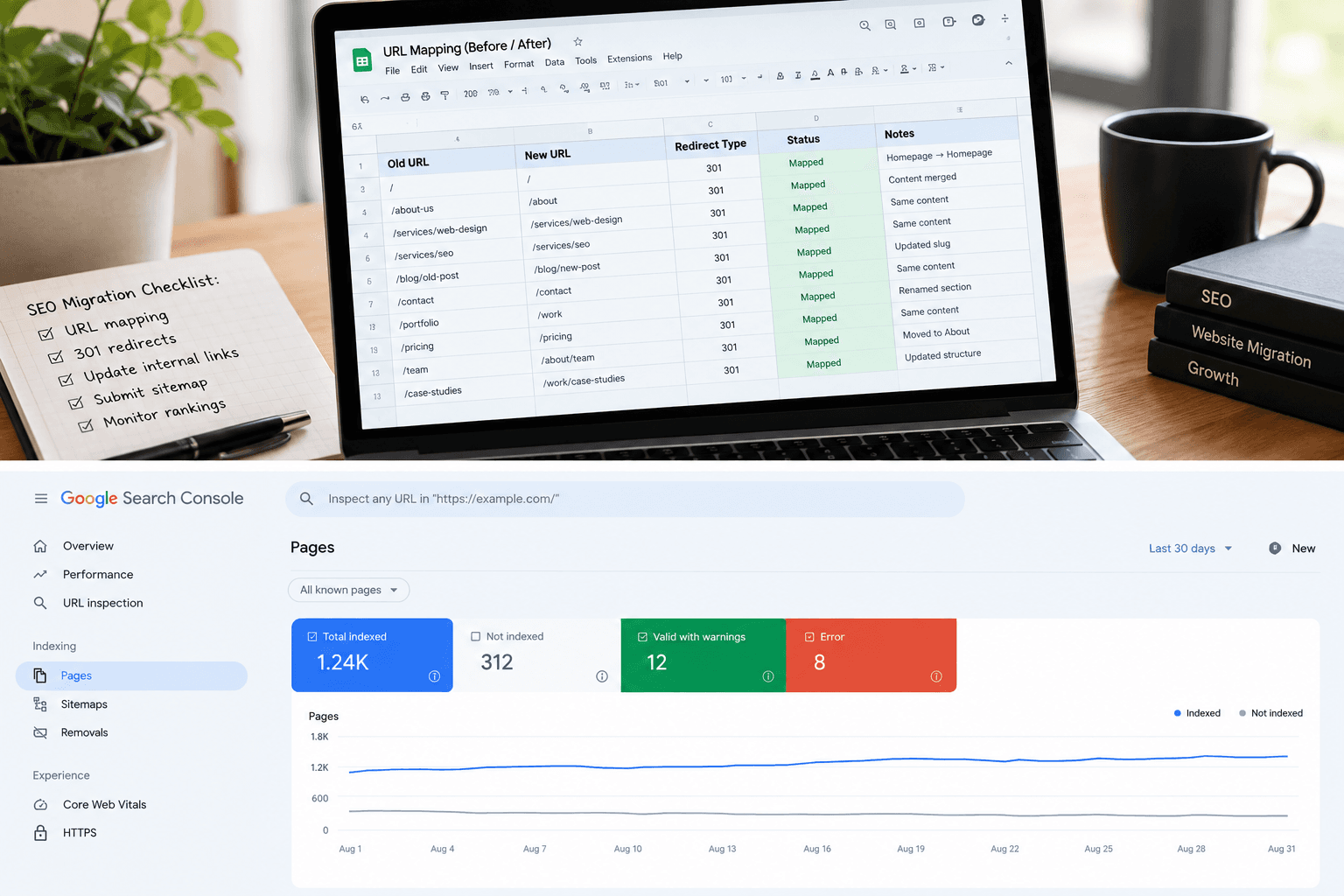
A redesign is supposed to make things better. New look, faster pages, easier to update. But there's a quiet risk most business owners don't hear about until it's too late: the new site goes live, and a few weeks later, search traffic starts sliding.
Not because the new site is worse. Because Google can no longer find what it used to find.
I rebuild and migrate websites for clients, and this year I went through the same process on my own site. Here's the checklist I follow, plus one mistake I found on my own site that I think is worth sharing.
Why redesigns lose traffic
Google ranks pages, not websites. Every URL on your current site has built up its own history: links pointing to it, searches it appears for, clicks it earns. A redesign doesn't carry that history across automatically.
The usual causes:
- URLs change without redirects. Old links and old search results lead to a 404.
- Pages get merged or dropped. Content that ranked is simply gone.
- Titles and headings get rewritten. The words Google matched on disappear.
- Content moves behind JavaScript. Tabs, sliders, and "load more" buttons can hide text from crawlers.
- The sitemap and robots.txt get forgotten. Left over from the old site, or never updated.
None of these are visible when you look at the new design. That's what makes them dangerous.
Before launch: map what you already have
1. List every URL on your current site. Use more than one source: your sitemap, a crawler like Screaming Frog, and the Pages report in Google Search Console. Sitemaps are often incomplete, as you'll see below.
2. Find the pages that actually earn traffic. In Search Console, open Performance, set the range to the last 12 months, and sort pages by clicks. These pages are non-negotiable.
3. Map every old URL to a new one. A spreadsheet with two columns is enough. Each old URL gets one of three outcomes: it stays the same, it points to the closest matching new page, or you decide on purpose to retire it. Don't redirect everything to the home page. Google treats that much like a missing page.
4. Keep what ranks. Carry over the page titles, main headings, and core copy of your top pages. Improve them by all means, but don't throw them away. (More on this in Quick Tips to Boost Your SEO with Better HTML Structure.)
Launch day
5. Set up 301 redirects from your map. Test a sample of old URLs by hand. Each one should land on the right page in a single hop, without a chain of redirects.
6. Check robots.txt. Staging sites often block everything with Disallow: /, and that file sometimes ships to production by accident.
7. Remove any staging noindex tags. Same problem, different place.
8. Submit a fresh sitemap in Search Console. Make sure it lists the new URLs, not the old ones.
9. Check that your content is in the page itself. Use Search Console's URL Inspection tool on a few key pages. If your main text isn't in what Google sees, Google can't rank it.
The mistake I found on my own site
Here's the honest part. Earlier this year I audited my own site and found two problems I had built myself.
My blog only showed 25 of my 37 posts. The CMS I was using returns 25 items per request by default, and my code never asked for more. Twelve posts were missing from the blog page and from the sitemap. Nothing looked broken. The page loaded fine; it just stopped at 25.
My sitemap was frozen. It was generated once when the site was built and saved as a static file. Every page shared the same "last updated" date, and posts I published afterwards never appeared in it. Because that static file sat in front of everything else, nothing I changed elsewhere could update it.
The fix was to fetch every post properly and generate the sitemap from the real content, with each post's real publish date.
The lesson is simple: count. If you have 37 posts, your sitemap should list 37 posts. A two-minute check would have caught both problems. Put it on your checklist.
The first 30 days after launch
10. Watch the Pages report in Search Console. Look for new 404s and pages marked "Crawled – currently not indexed".
11. Compare your top pages with how they did before launch. Some movement in the first weeks is normal. A steady decline on one specific page usually means a missing redirect or lost content.
12. Update your internal links. Point links straight at the new URLs instead of relying on redirects.
13. Keep the redirects for good. Google recommends keeping them for at least a year. I leave them in place indefinitely; they cost almost nothing.
The short version
- List every URL, from more than one source
- Find the pages that earn traffic
- Map old URLs to new ones, with no blanket redirects to the home page
- Keep the titles, headings, and copy that rank
- Set up 301 redirects and test them
- Check robots.txt and noindex tags
- Submit a fresh sitemap, and count what's in it
- Watch Search Console for 30 days
Conclusion
A redesign should be a fresh start for how your site looks, not for how Google sees it. Most traffic losses after a launch don't come from bad design. They come from small steps nobody owned.
If you're planning a rebuild or moving platforms, like WordPress to Next.js or Wix to Shopify, and want to keep the traffic you've already earned, that's exactly the kind of project I take on. Email me what you have and where you want to go, and I'll reply with a plan.